
App reviews, as Zendesk tickets.
The Zendesk integration for app store reviews hands the tricky ones to your support team. Ticket status shows on the review, and the reply goes out from AppReply.
Connect on any plan · Ticket rules need Pro · 10-day Pro trial · No credit card
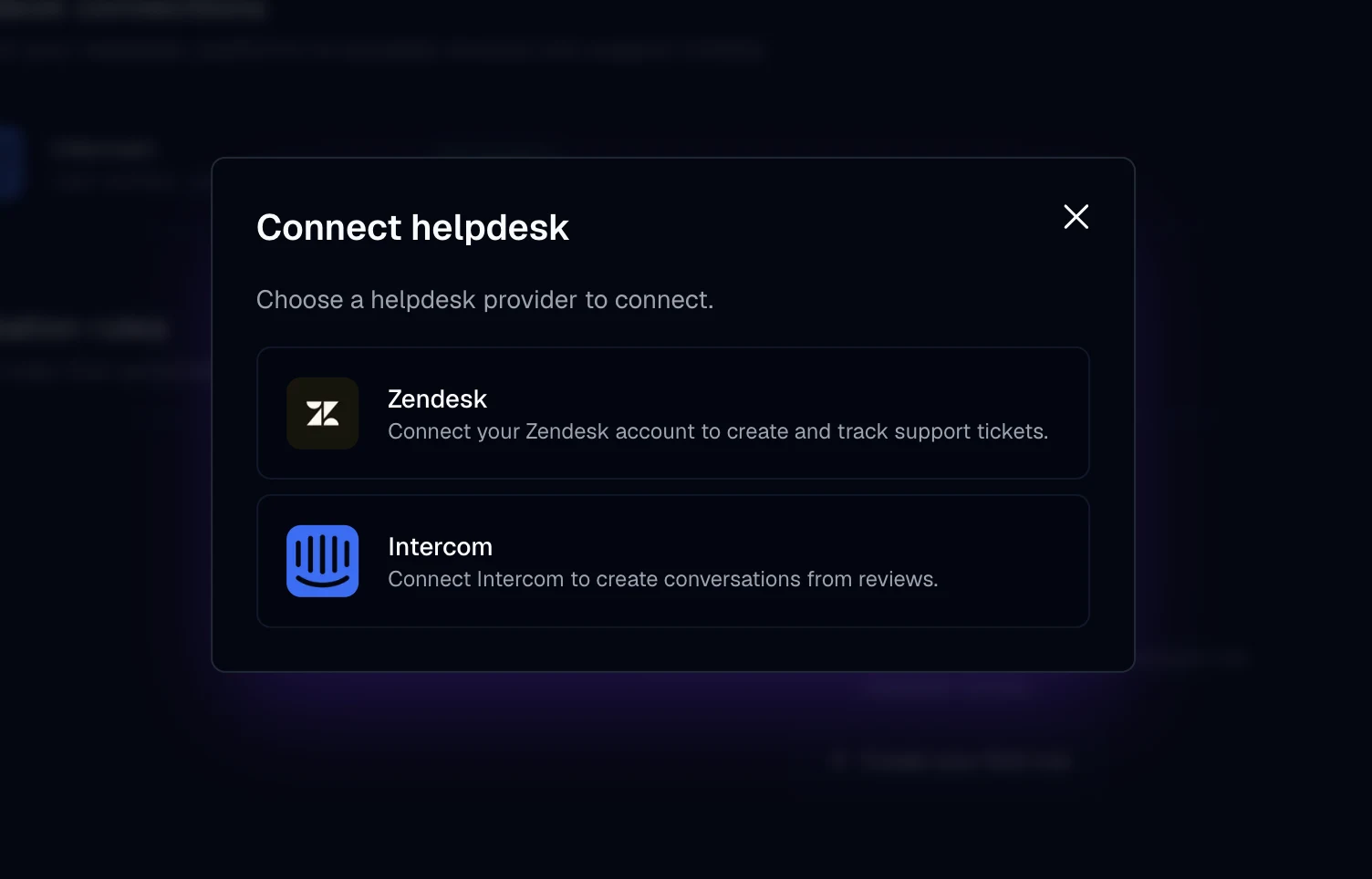
Connect Zendesk once. Then add ticket rules.
Connecting Zendesk works on any plan, and ticket rules need Pro. You need admin access in Zendesk.
Permissions and data
You approve ticket access through an OAuth client. Tokens stay with the connection service, and replies to reviewers always go out from AppReply.
Create an OAuth client
In Zendesk Admin Center, an admin creates an OAuth client for AppReply and copies its client ID and secret.
Choose Zendesk in AppReply
In AppReply, open Integrations. Under Helpdesk connections, click Connect and choose Zendesk.
Enter the details and approve
Enter your Zendesk subdomain, client ID and client secret, then approve access in Zendesk. AppReply adds the webhook and trigger it needs to follow ticket status.
Start sending reviews
Use Create ticket on a review. On Pro, add a ticket rule for new reviews that match.
Give support the reviews that need digging.
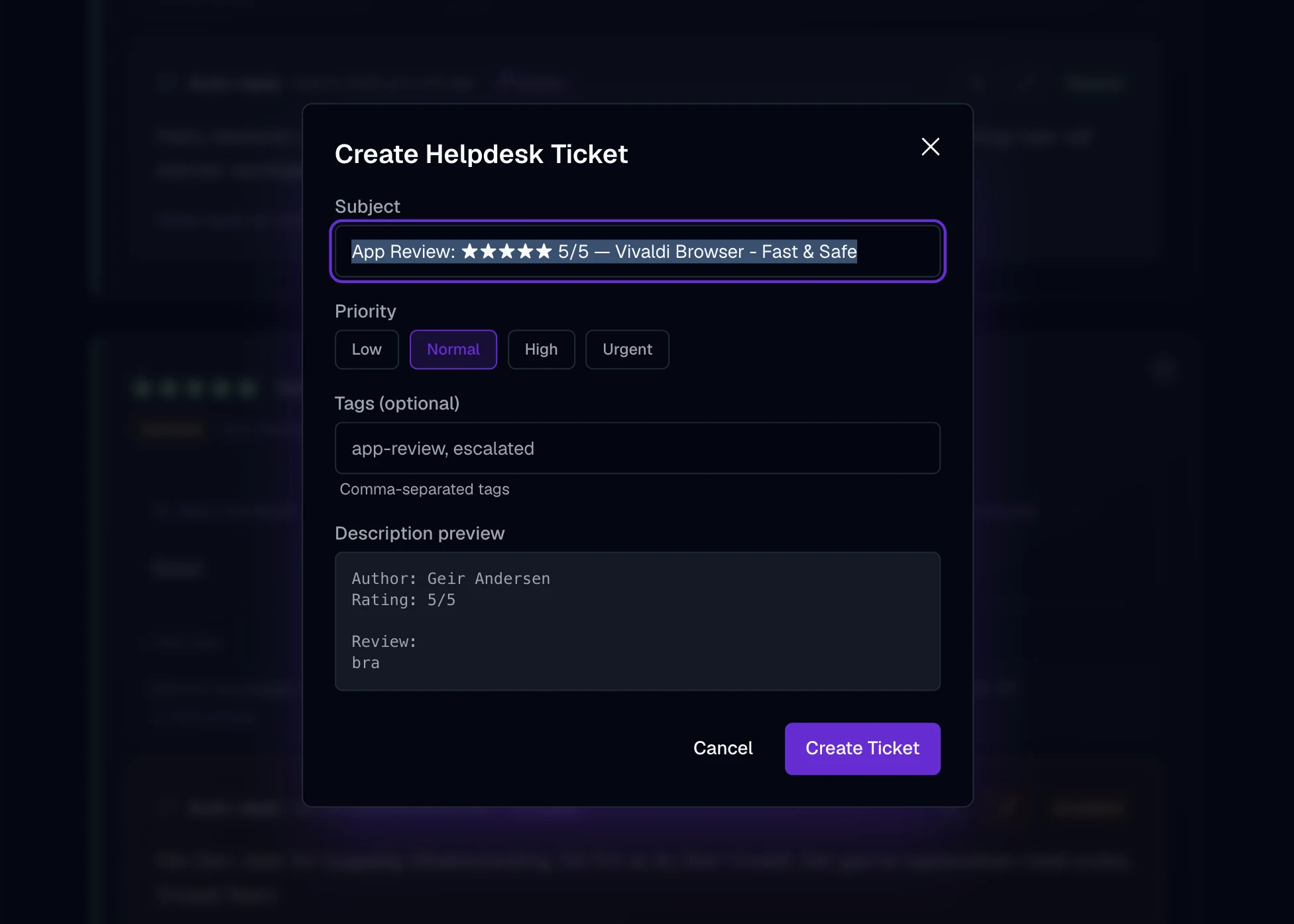
Open any review and choose Create ticket. On Pro, ticket rules do it for new reviews. Rules match on stars, app, language, keywords and review length. Each ticket carries the rating, reviewer, app, store and review text, with a priority and tags. Tickets made by a rule add the translation; tickets you create by hand add the app version.
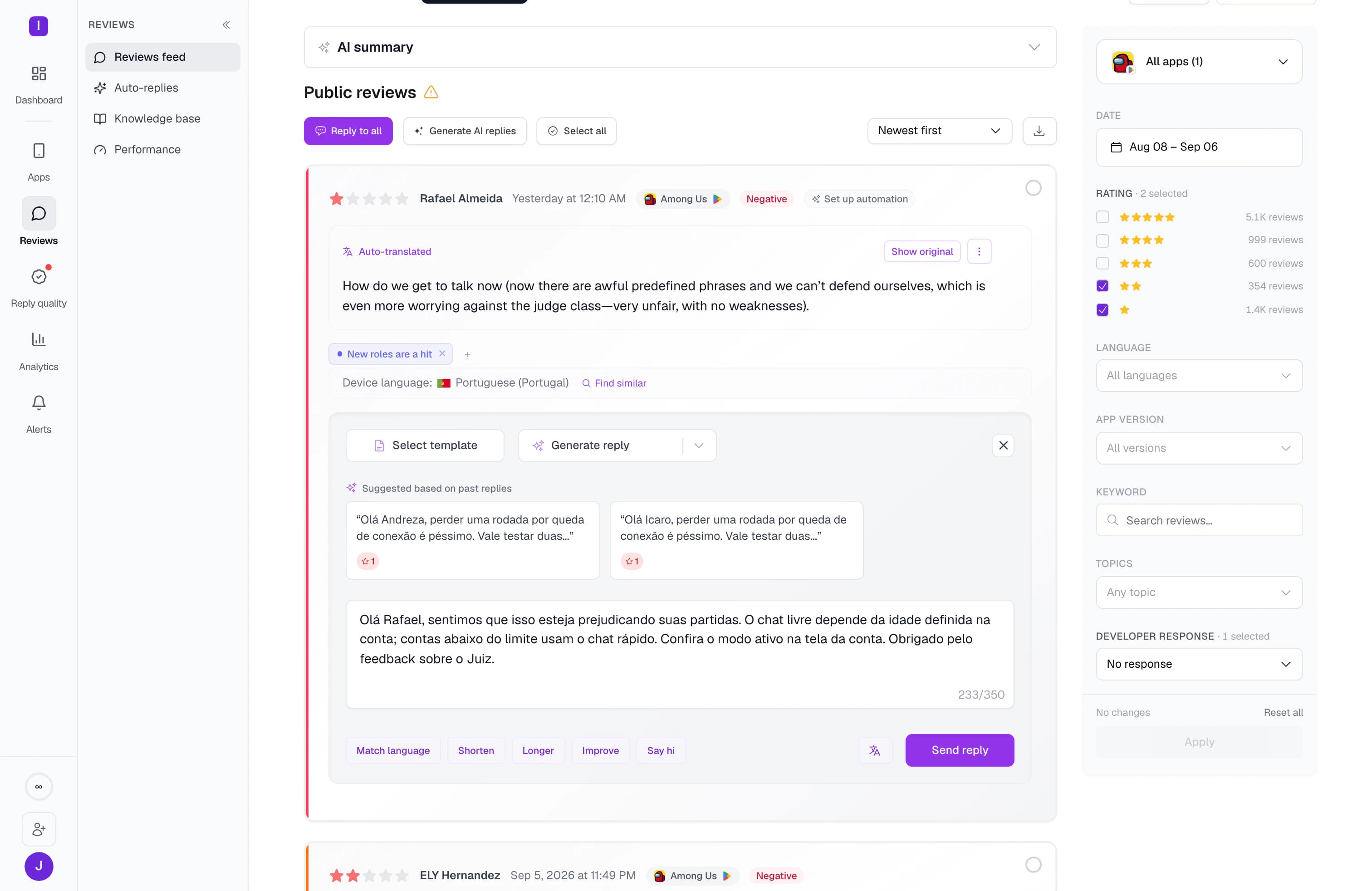
See ticket status right on the review.
As agents work the ticket, its status syncs back and shows on the review in AppReply: open, pending, resolved or closed. When the fix is known, answer the reviewer from AppReply. A draft built from your help docs and approved answers can be waiting.
FAQ
Questions about Zendesk
Can Apple App Store reviews become Zendesk tickets?
Yes. Open a review and choose Create ticket. On Pro, a ticket rule can do it for new reviews. The ticket carries the rating, reviewer, app, store and review text.
Is there a Google Play reviews Zendesk integration?
Yes, the same one. Choose Create ticket on any review in AppReply, including Google Play reviews.
How does the reviewer get an answer?
You publish it from AppReply. Zendesk is where your team looks into the issue, and the ticket status shows on the review while you work.
Can one review create several tickets?
AppReply links one Zendesk ticket to a review. After that, the review shows the ticket status in place of Create ticket, and later rule runs skip it. Two ticket rules that match the same new review in one run can each open a ticket, so keep your rules from overlapping.
Which ticket statuses show in AppReply?
Open, pending, resolved and closed. The status syncs back from Zendesk and shows on the review.
Which plan includes the Zendesk integration?
You can connect Zendesk and create tickets by hand on any plan. Ticket rules, which open tickets for new reviews by themselves, need Pro. Try them with the 10-day Pro trial.
Does AppReply store my Zendesk tokens?
No. The connection service AppReply uses holds them. AppReply itself does not store them.


Turn your next hard review into a ticket.
Connect Zendesk, send a review over with Create ticket, and keep every reply in AppReply.
Connect on any plan · Ticket rules need Pro · 10-day Pro trial · No credit card