Loading. Please wait...
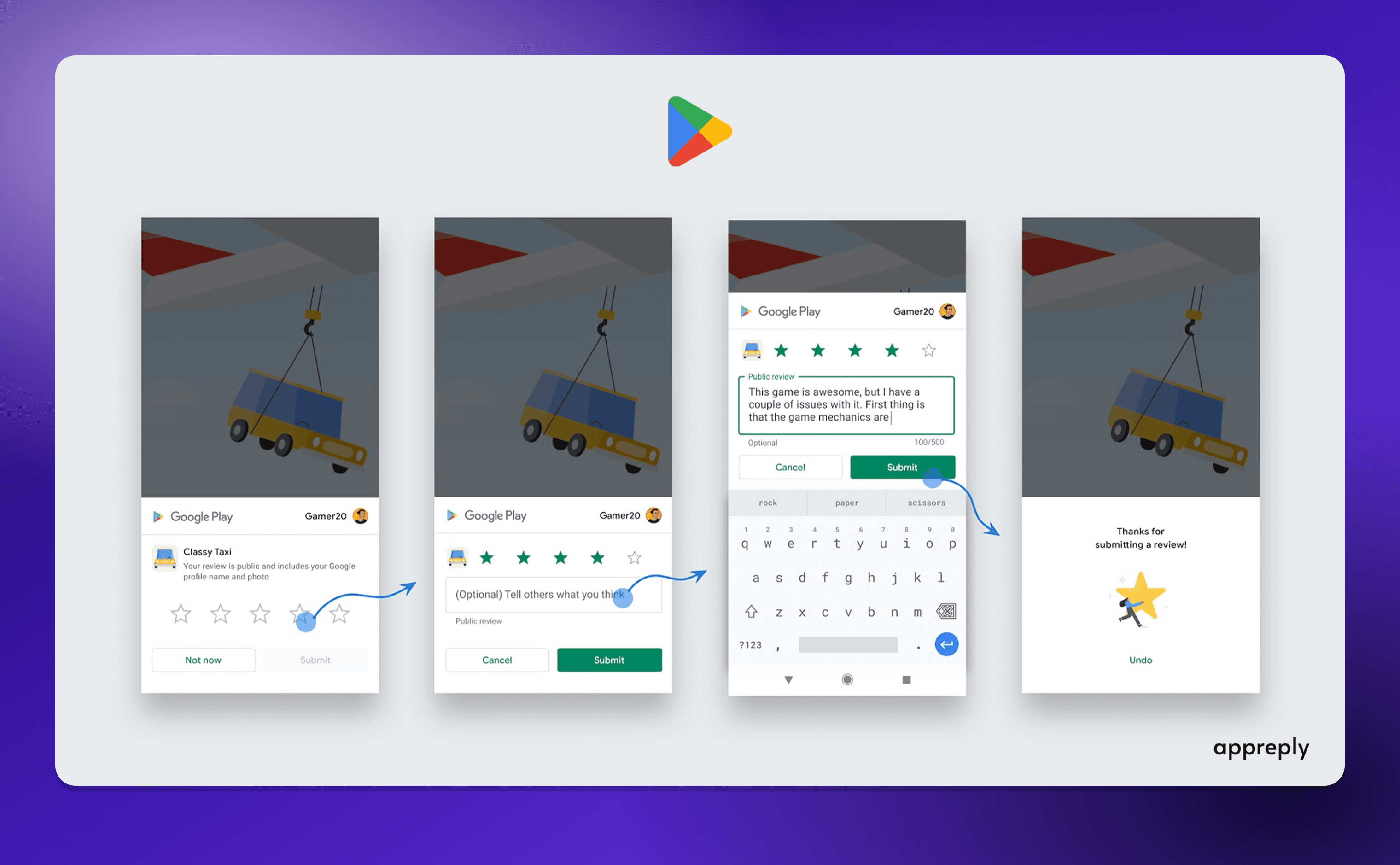
The native review prompts on iOS and Android are the easiest way to get more ratings, and the easiest to waste. This guide covers when to show them and the code for both platforms. It also covers the limits the stores enforce, and why asking 'Do you enjoy the app?' first breaks the rules.
requestReview, on Android the Google Play In-App Review API. Tokopedia told Google its five-star ratings grew 4x after adopting the Android one.Most apps ask for a rating the same way: a popup on day three, shown to everyone, at whatever moment the timer fires. Half the people who see it are in the middle of something. Some just hit an error. The prompt was supposed to collect happy users' ratings and instead it collects annoyed ones.
This guide is for the developer or product manager who owns that prompt. It covers when to show it, the code for both platforms, the limits the stores enforce, and one tempting shortcut that breaks the rules.
Yes. The rating happens in a small sheet inside your app, so users never leave it and more of them finish. Sending people to your store page costs them a context switch: the store opens, they find the stars, they come back if they remember. The native prompts skip all of that. The rating happens in a small sheet inside your app.
| Native prompt | Link to your store page | |
|---|---|---|
| Where the rating happens | Inside your app | In the App Store or Play Store |
| Steps for the user | Tap stars, optionally write, done | Leave the app, find the rating, come back |
| Who controls when it appears | The store, within limits | You |
| Can you tell if it was shown | No | Yes |
| Good for | Asking at a success moment | A permanent "Rate this app" link in settings |
The volume difference is large. When Google launched its in-app review API, Tokopedia's technical architect said: "Our 5-star ratings since implementing the API has increased by 4x." (Android Developers Blog)
There is a second effect to expect. Without a prompt, the people who rate are mostly the ones who seek out your store page, often because something annoyed them. A native prompt also asks people who would never have gone looking. For an app that works, that means a steadier flow of ordinary ratings next to the furious ones people write on their own.
The native prompt is also the only kind of rating dialog allowed on iOS. A custom star rating screen of your own is not a substitute: Apple disallows custom review prompts, and on Android only the In-App Review API submits a rating to Google Play from inside your app.
Right after the user got what they came for, and never at launch, mid-task or after an error. Apple's own guidance says the same: "Make the request when users are most likely to feel satisfaction with your app, such as when they've completed an action, level, or task. Make sure not to interrupt their activity." (Apple Developer)
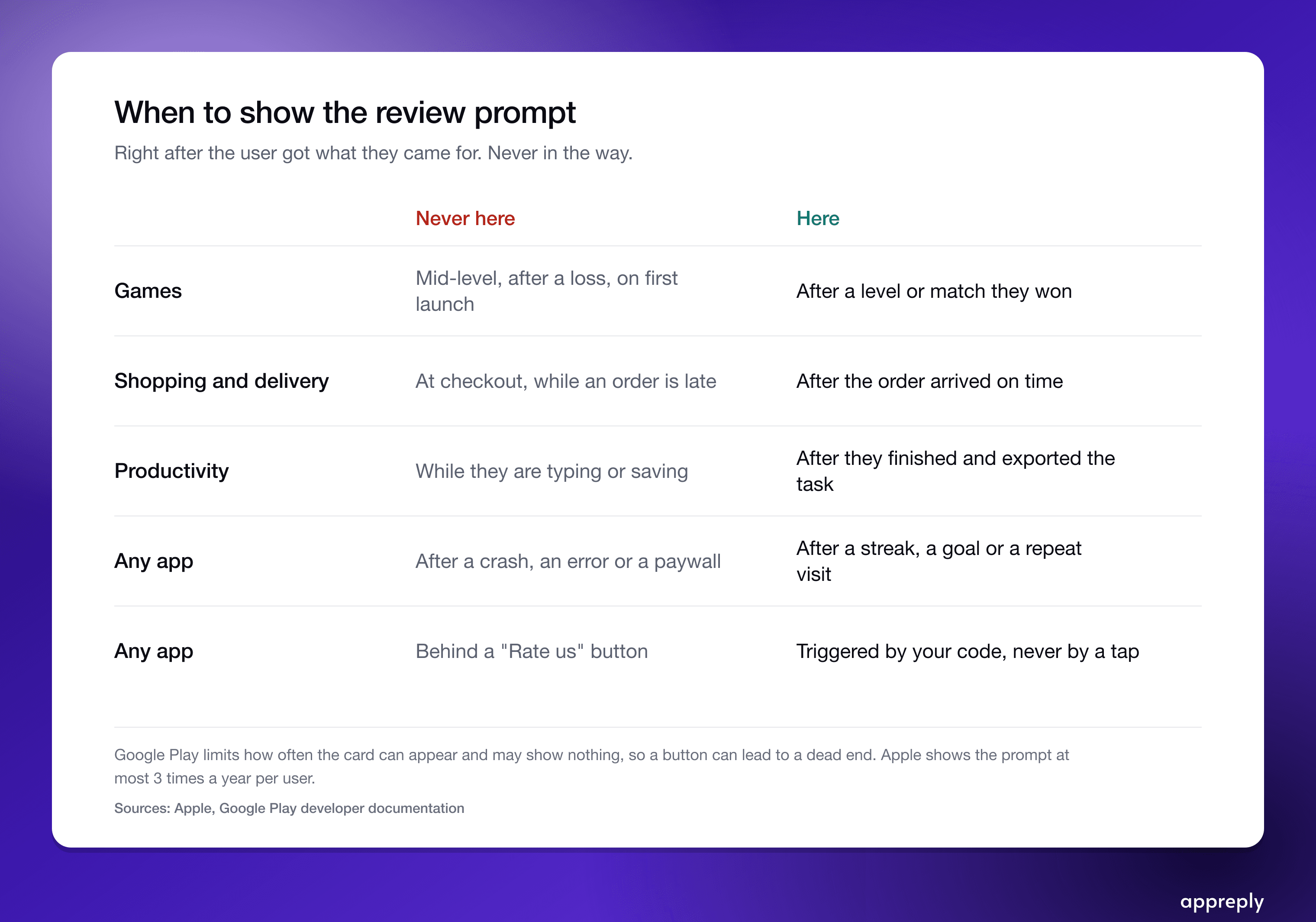 The prompt works at the end of a good moment, never in the middle of one.
Good moments by app type:
Never ask:
A practical eligibility rule, before your success moment even counts:
These numbers are starting points, not store rules. Tune them against your own data.
On iOS 16 and later, SwiftUI gives you a requestReview action. You ask; the system decides whether to show the prompt.
import StoreKit
import SwiftUI

struct OrderDeliveredView: View {
    @Environment(\.requestReview) private var requestReview

    var body: some View {
        DeliveredSummary()
            .task {
                // Your rules decide if the user is eligible.
                // The system decides if the prompt actually appears.
                if ReviewPrompt.isEligible() {
                    requestReview()
                }
            }
    }
}
In UIKit, call AppStore.requestReview(in:) with the current window scene. Older code uses SKStoreReviewController.requestReview(in:), which does the same job but is deprecated from iOS 18, so move to AppStore.requestReview(in:) when you next touch that code.
What Apple enforces:
On Android, request a review flow, then launch it at your success moment.
val manager = ReviewManagerFactory.create(context)

manager.requestReviewFlow().addOnCompleteListener { request ->
    if (request.isSuccessful) {
        val reviewInfo = request.result
        manager.launchReviewFlow(activity, reviewInfo).addOnCompleteListener {
            // The flow finished. You can't tell whether the card showed
            // or whether the user rated, so just continue.
            continueToNextScreen()
        }
    } else {
        // Requesting the flow failed. Carry on as if nothing happened.
        continueToNextScreen()
    }
}
Google suggests requesting the review info shortly before the moment, once you are sure you will show the card, because the request takes a moment. The sample does both steps together for brevity. Use FakeReviewManager in tests, and an internal test track or internal app sharing to see the real card.
What Google enforces:
Review gating means asking users whether they like the app first and sending only the happy ones to the store. It lifts your average, and it is not allowed: Google Play forbids it outright, Apple treats filtered feedback as manipulation, and the FTC warns against asking only customers you expect to be happy.
It is still the most common shortcut in this whole topic. A screen asks "Do you enjoy the app?". Users who tap yes get the store prompt. Users who tap no get a feedback form. Only happy users reach the store.
It works on the number. Filtering out unhappy users before they can rate lifts your average, because the people most likely to rate low never reach the store. The cost is volume: every extra screen loses people.
A gated flow: a satisfaction question decides who sees the store prompt. It lifts the average, and it is not allowed on Google Play.Here is why you should not ship it:
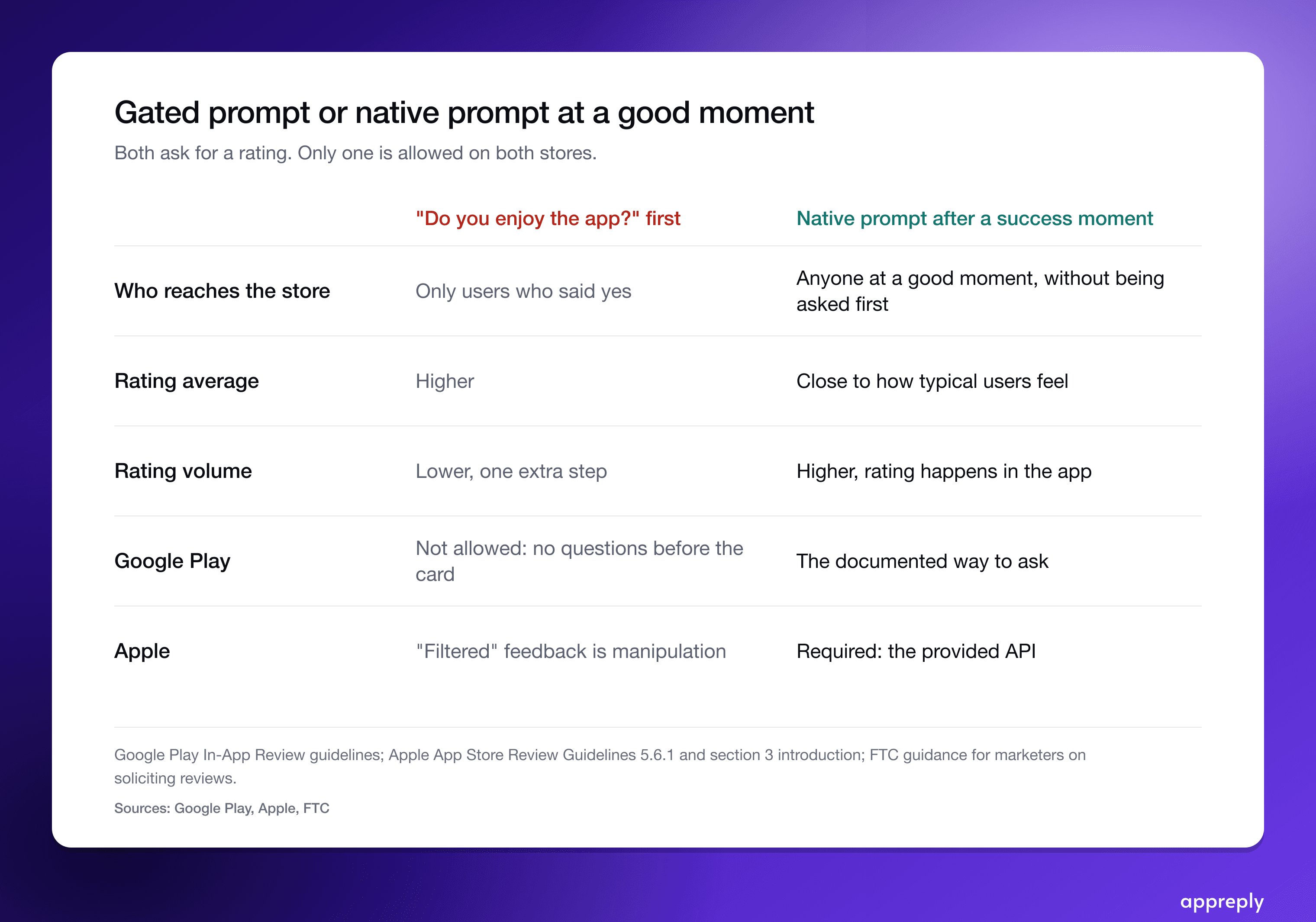 Both flows ask for a rating. Only one is allowed on both stores.
The compliant version gets most of the benefit. Asking at a success moment already reaches users while they are satisfied, without asking them anything first. And unhappy users still need somewhere to go:
Three numbers tell you whether the prompt works:
Both Play Console and App Store Connect show ratings over time, so you can compare the weeks before and after a change. The Ratings view in AppReply also splits your store rating by app version, so you can see whether the release that added the prompt moved it. Change one thing at a time: the moment, the eligibility rule, or the cooldown.
More ratings means more written reviews, and some of them will be one star. That is normal and it is useful: those reviews tell you what to fix, and future users read how you answer them.
Answer them well and more of them get raised: Google Play reports an average gain of 0.7 stars when a developer responds to a negative review. AppReply collects new reviews from all five stores in one feed and can alert your team when one-star reviews spike after a release. The mechanics of replying in each console are in how to reply to app store reviews. If your rating is dropping and you don't know why, start with our rating drop guide.
Managing reviews manually across apps and platforms breaks down fast. AppReply handles triage, routing, and responses, so you can focus on product.
Try AppReply freeFor the rest of the review lifecycle, from monitoring to analysis, see App Store Reviews 101.
Bring monitoring, full Analytics, MAX, and Reply Quality into one app review workflow.
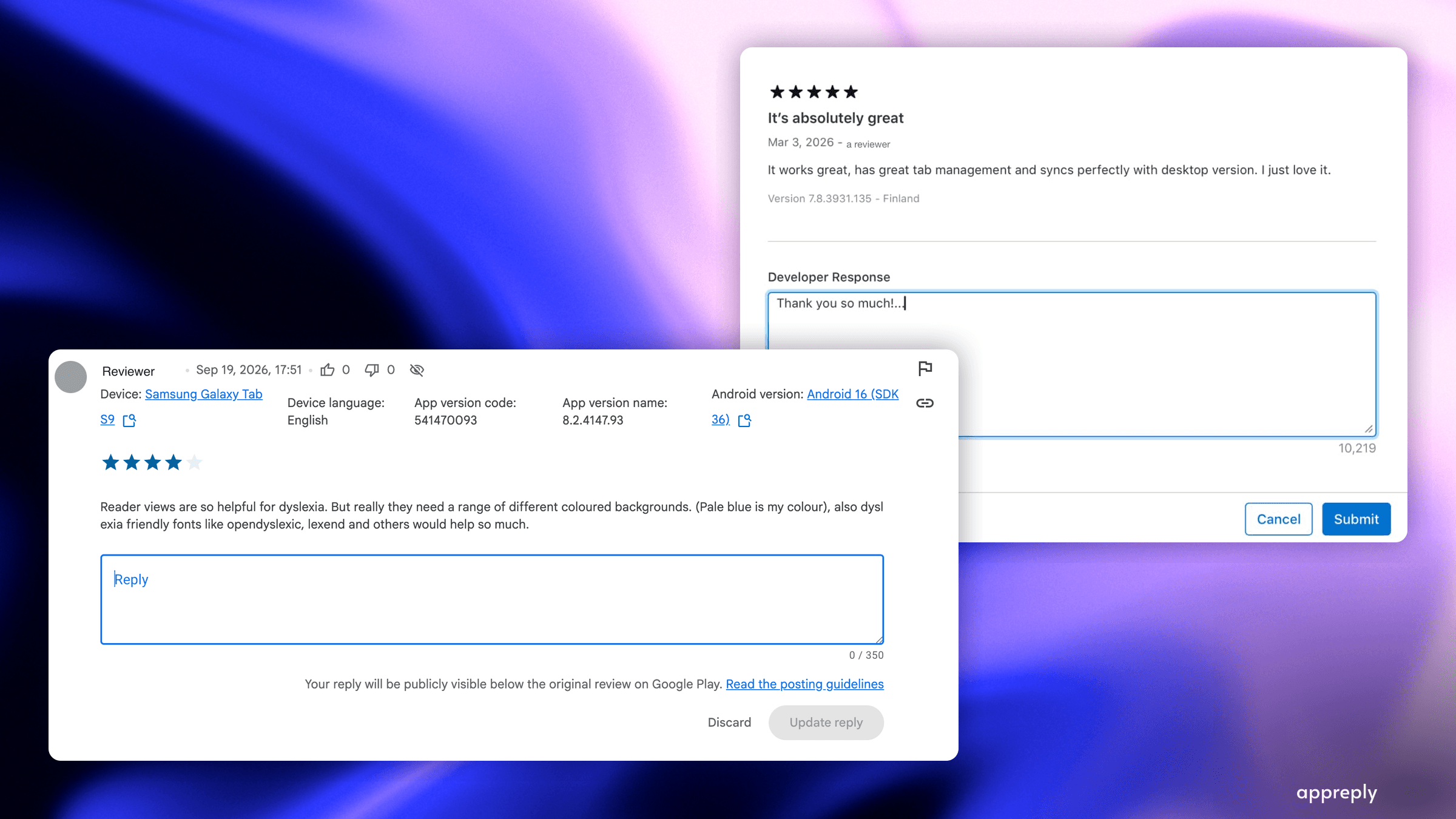
How to reply to app store reviews on iOS and Google Play in 2026: what to write, the steps in both consoles, real replies by review type, and what 100 top apps actually send back.

Your app store rating dropped. Find out why before you reply: five causes to tell apart, what Apple's reset and Google's recency weighting actually do, and how to measure whether your replies are helping it recover or just going out.